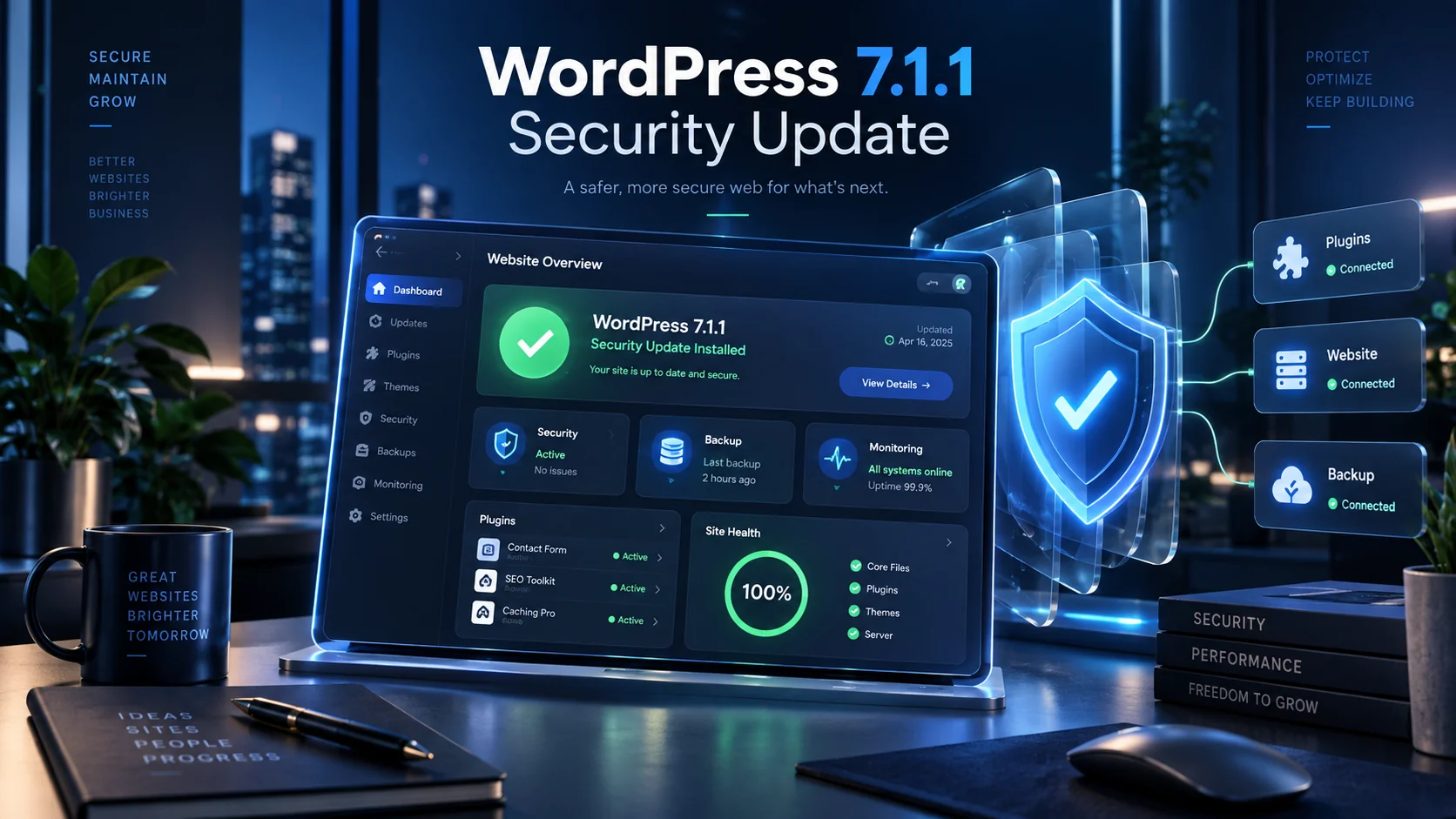
The WordPress 7.1.1 security update is now available.
If your company website runs on WordPress, this is an update you should not ignore.
WordPress released version 7.1.1 on September 17, 2026.
The release contains bug fixes for WordPress Core and the Block Editor. More importantly, it also includes multiple security fixes.
However, business owners should not simply click “Update” on a critical website without a plan.
An update is important. A safe update process is even better.
In this guide, we explain what changed, what you should check and how to update a business WordPress website without creating avoidable downtime.
What Is the WordPress 7.1.1 Security Update?
WordPress 7.1.1 is a maintenance and security release.
According to the official WordPress 7.1.1 release announcement, the update includes:
- 17 WordPress Core bug fixes
- 19 Block Editor bug fixes
- 11 security fixes
WordPress recommends updating websites immediately because this is a security release.
Therefore, businesses running older versions should review their update status now.
Do I Really Need to Update WordPress?
In most cases, yes.
Security updates fix known weaknesses in software.
Once a security fix becomes public, attackers may also study the changes.
Therefore, delaying updates without a clear reason can increase unnecessary risk.
However, that does not mean you should update a revenue-critical website without preparation.
A better process is:
Backup → Test → Update → Verify → Monitor.
Why Businesses Delay WordPress Updates
Many business owners understand that updates are important.
However, they often delay them because previous updates caused problems.
Common concerns include:
- A plugin may stop working
- The design may break
- Contact forms may fail
- WooCommerce checkout may stop working
- Custom functionality may create errors
- The website may show a blank page
- Payment gateways may fail
These concerns are reasonable.
The solution is not to avoid updates forever.
The solution is to use a safer maintenance process.
Step 1: Check Your Current WordPress Version
First, log in to your WordPress admin dashboard.
Then go to:
Dashboard → Updates
You should see the WordPress version currently installed and whether an update is available.
If someone else manages your website, ask them to confirm the production version.
Do not assume automatic updates are running correctly.
Step 2: Create a Complete Backup
Before a major or security-sensitive maintenance action, create a recoverable backup.
A useful backup should include:
- WordPress database
- Uploaded media
- Theme files
- Plugin files
- Custom code
- Configuration files
In addition, store the backup somewhere separate from the live website.
A backup that exists only on the same server can become useless if that server fails.
Do Not Just Create Backups — Know How to Restore Them
This is an important distinction.
Many websites technically have backups.
However, nobody has confirmed whether those backups can actually restore the site.
A professional website maintenance and AMC process should include a clear recovery procedure, not only scheduled backup files.
Step 3: Review Plugin and Theme Compatibility
WordPress websites often depend on several plugins.
For example, a business website may use plugins for:
- SEO
- Contact forms
- Security
- Caching
- Page building
- Analytics
- Backups
- WooCommerce
- Payments
- Email delivery
Therefore, WordPress Core is only one part of the system.
Before updating a critical website, review the plugins that directly affect revenue or lead generation.
Step 4: Use a Staging Website When Possible
A staging environment is a private copy of your website.
It allows developers to test updates before touching the production site.
This is especially useful for:
- WooCommerce stores
- Membership websites
- Booking platforms
- Lead-generation websites
- Websites with custom plugins
- Websites with payment gateways
For a simple brochure website, staging may not always be essential.
However, the more money or business operations depend on your website, the more valuable testing becomes.
Step 5: Update WordPress Core
Once the backup and compatibility checks are complete, update WordPress.
If your hosting environment supports automatic background updates, WordPress may already handle some security releases automatically.
Still, check the website afterward.
Never assume “update completed successfully” means every business workflow still works.
Step 6: Clear Website and CDN Caches
After an update, cached files can sometimes create confusing results.
Therefore, clear the relevant caches.
Depending on your setup, this may include:
- WordPress caching plugin
- Server cache
- Cloudflare or CDN cache
- Browser cache during testing
Then test the website in a fresh browser session.
Step 7: Test the Pages That Actually Make You Money
Do not test only the homepage.
Your homepage can look perfect while the contact form silently fails.
Instead, test the workflows that affect revenue.
For a Service Business
Test:
- Contact forms
- Quote forms
- Phone links
- Email links
- Appointment booking
- Lead notifications
For WooCommerce
Test:
- Product pages
- Product variations
- Add to cart
- Coupon codes
- Shipping calculation
- Checkout
- Payment gateway
- Order email
- Customer account
Businesses that need help with more complex commerce workflows can also review our eCommerce development services.
Step 8: Test WordPress Forms
Forms deserve special attention.
A website may look completely normal while form submissions fail in the background.
Therefore, submit a real test enquiry.
Then verify that:
- The website accepts the form
- The lead is stored correctly
- The notification email arrives
- The customer receives confirmation if required
- The CRM receives the lead if connected
A broken form can quietly cost a business leads for days.
Step 9: Check Mobile Experience
Next, test the site on mobile devices.
Do not rely only on desktop testing.
Check:
- Navigation
- Forms
- Buttons
- Popups
- Product pages
- Checkout
- Login
You can also review our article on mobile-first website design for a broader look at mobile usability.
Step 10: Monitor the Website After Updating
An update can appear successful at first.
However, some problems only appear after users begin interacting with the website.
Therefore, monitor the site after deployment.
Useful areas to watch include:
- Uptime
- Server errors
- PHP errors
- Broken forms
- Failed orders
- Payment failures
- Email delivery
- Page speed
What If WordPress 7.1.1 Breaks My Website?
Do not panic.
First, identify what changed.
The problem may come from:
- A plugin
- A theme
- Custom PHP code
- A caching layer
- A page builder
- A server configuration
If the site is business-critical, avoid experimenting randomly on production.
Instead, restore the last known working state if necessary.
Then reproduce the issue in staging and identify the conflict.
Should I Disable WordPress Automatic Updates?
There is no universal answer.
Automatic security updates can reduce the time your website remains exposed to known vulnerabilities.
However, complex websites may need controlled testing.
For example, a WooCommerce store with custom checkout logic requires more care than a five-page brochure website.
Therefore, your update strategy should match the risk and complexity of your website.
WordPress Security Is More Than Updating WordPress Core
Updating WordPress is important.
However, security requires several layers.
A better maintenance process can include:
- WordPress Core updates
- Plugin updates
- Theme updates
- Secure administrator accounts
- Regular backups
- Malware monitoring
- Uptime monitoring
- SSL monitoring
- Server updates
- Login protection
- Performance checks
In other words, clicking the WordPress update button is not a complete website maintenance strategy.
WordPress vs Next.js: Does WordPress Require More Maintenance?
WordPress and Next.js have different maintenance models.
WordPress offers excellent content management tools and a huge plugin ecosystem.
However, that ecosystem also means businesses need to manage Core, theme and plugin compatibility over time.
Next.js applications have their own dependency and deployment maintenance requirements.
If you are deciding between the two, read our detailed comparison of WordPress vs Next.js in 2026.
When Does a Business Need a Website AMC?
Not every website needs the same maintenance plan.
A simple static website has fewer moving parts.
However, ongoing maintenance becomes more important when your site includes:
- WordPress
- WooCommerce
- Customer logins
- Online payments
- Appointment booking
- Lead-generation forms
- Third-party APIs
- Custom functionality
- Regular content changes
The more your business depends on the website, the more costly unexpected downtime becomes.
What Should a Good Website Maintenance Service Include?
A useful maintenance service should clearly define what it covers.
At minimum, consider:
- Core updates
- Plugin and theme updates
- Backups
- Security monitoring
- Uptime monitoring
- Basic bug fixes
- Performance checks
- Content updates
- Support response time
More advanced plans may also include development hours, server management and priority support.
Do Not Wait for Your Website to Break
Many businesses treat website maintenance as an emergency service.
Something breaks.
Then they search for a developer.
However, preventative maintenance is usually easier than emergency recovery.
For example, imagine your lead form stops working for one week.
Your website remains online, so nobody notices the problem immediately.
Yet every missed enquiry during that period is a potential lost customer.
The same applies to a broken ecommerce checkout.
How NRS Technologies Handles Website Maintenance
At NRS Technologies, our website AMC approach focuses on keeping business websites secure, updated and operational.
Depending on the website, ongoing support can include:
- Regular website updates
- Content and image updates
- Security monitoring
- Malware protection
- Performance optimization
- Backup and restoration support
- Hosting support
- Server support
- Bug fixes
- Performance reviews
We also provide custom web development services when a website requires more than routine maintenance.
What If Your Current WordPress Site Has Become Too Difficult to Maintain?
Sometimes maintenance reveals a deeper problem.
A website may contain too many plugins, outdated custom code or a theme that is difficult to extend.
In that situation, continuing to patch the same architecture may not be the best long-term solution.
A structured redesign or rebuild can sometimes reduce future maintenance risk.
However, do not rebuild simply because WordPress released an update.
The decision should depend on your website’s actual technical condition.
Need Help Updating WordPress 7.1.1 Safely?
If your website is important to your business and you are unsure whether it is safe to update, NRS Technologies can help review it.
We can assist with:
- WordPress updates
- Plugin compatibility checks
- Website backups
- WooCommerce testing
- Bug fixes
- Security checks
- Website speed optimization
- Hosting support
- Website migration
- Ongoing AMC
You can also review our selected projects or learn more about NRS Technologies.
Ask NRS Technologies to review your WordPress website →
Frequently Asked Questions
What is WordPress 7.1.1?
WordPress 7.1.1 is a maintenance and security release published on September 17, 2026. It includes fixes for WordPress Core, the Block Editor and several security issues.
Does WordPress 7.1.1 include security fixes?
Yes. WordPress says version 7.1.1 includes 11 security fixes and recommends that website owners update immediately.
Should I back up my website before updating WordPress?
Yes. A current and recoverable backup gives you a rollback option if a plugin, theme or custom feature creates a compatibility problem.
Can a WordPress update break plugins?
Compatibility problems can happen. Therefore, critical business websites should test important plugins and workflows after updating.
Should WooCommerce stores update immediately?
Security updates should not be ignored. However, WooCommerce stores should ideally back up the site, test compatibility and verify cart, checkout, payments and order emails after the update.
Does NRS Technologies provide WordPress maintenance?
Yes. NRS Technologies provides website maintenance and AMC support covering updates, security, backups, performance, bug fixes and hosting-related assistance.
Final Thoughts
The WordPress 7.1.1 security update is a useful reminder of one simple fact.
A business website is not a one-time project.
It is a live system.
It needs updates, backups, monitoring and occasional technical support.
Therefore, do not ignore security releases.
At the same time, do not blindly update a business-critical website without checking what happens afterward.
Use a simple process:
Backup. Test. Update. Verify. Monitor.
If you would rather have someone manage that process for you, contact NRS Technologies about Website AMC and WordPress maintenance.